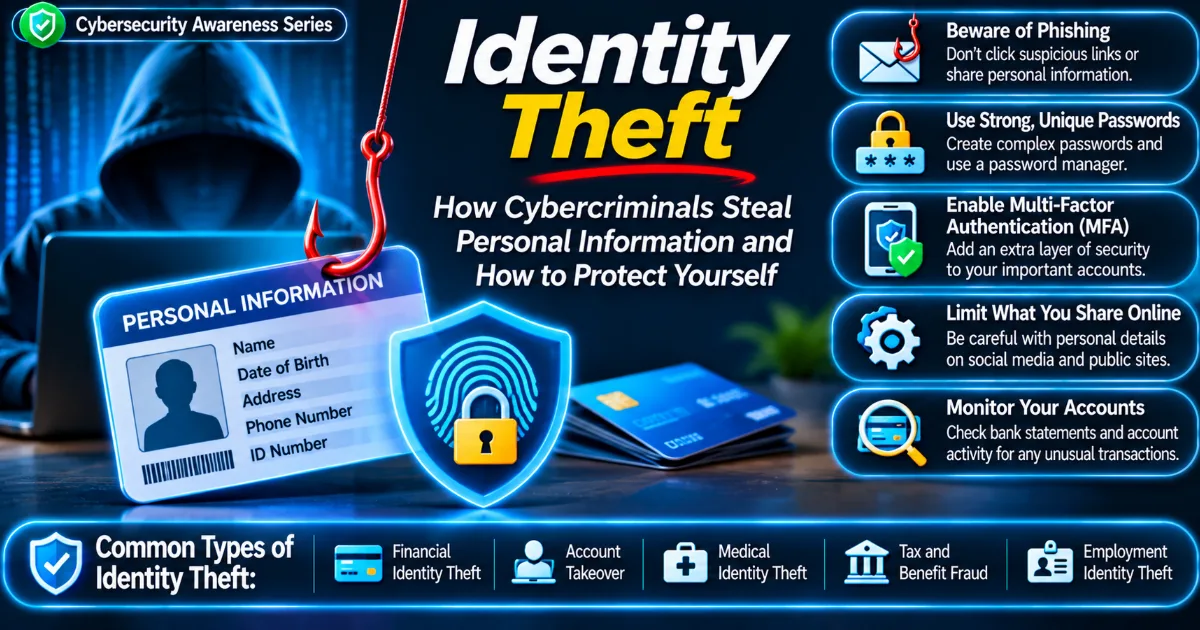
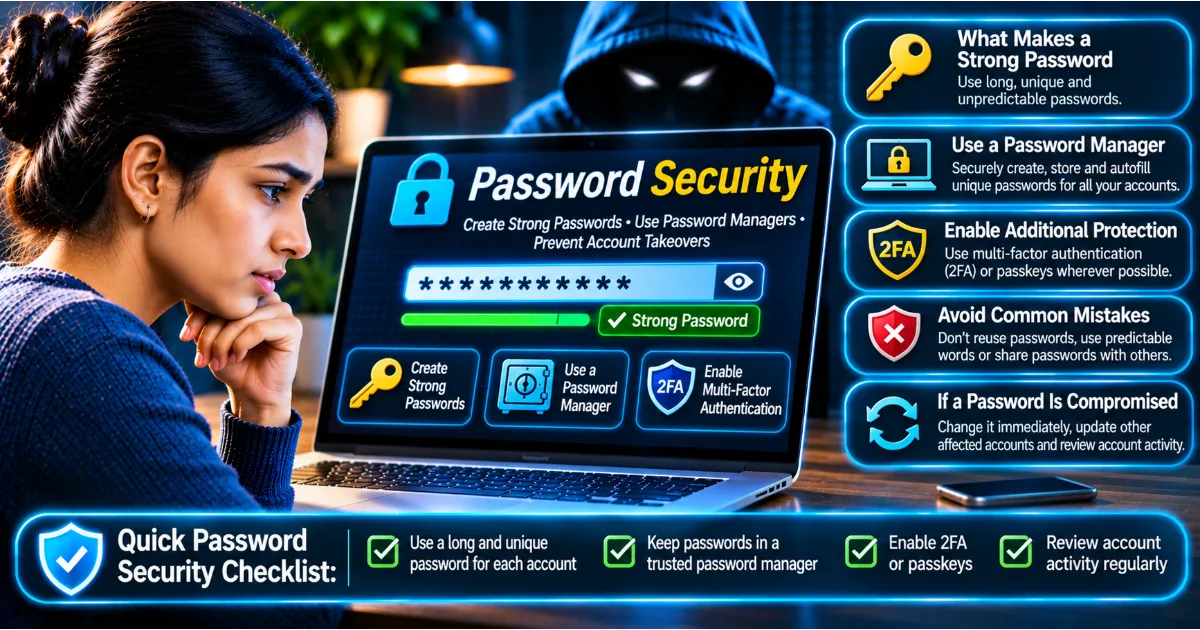
Online accounts have become part of almost every aspect of modern life. People use digital platforms for banking, shopping, education, healthcare, communication, entertainment and professional work. These accounts often contain personal conversations, financial information, identity details, private photographs, business documents and other sensitive data. Protecting access to them is therefore essential.
For many years, passwords were the primary method of securing online accounts. However, passwords have several weaknesses. People reuse them across websites, choose predictable combinations, accidentally disclose them through phishing messages or store them in insecure locations. Even a strong password can be stolen through malware, data breaches or deceptive login pages.
Cybercriminals take advantage of these weaknesses to access accounts without permission. Once an attacker obtains a valid password, they may attempt to take control of an account, steal information, impersonate the owner or access other connected services. A compromised email account can be especially damaging because it may provide a route to reset passwords on several other platforms.
Multi-factor authentication and passkeys provide modern ways to reduce these risks. Multi-factor authentication requires users to verify their identity using more than one type of authentication factor. Passkeys use public-key cryptography to provide passwordless authentication on supported services. Both approaches can make unauthorised account access more difficult, although they work differently and have different security characteristics.
This article explains what multi-factor authentication is, how two-factor authentication works, why authentication methods matter, how passkeys protect accounts, which options offer stronger protection, how to enable these features and what to do when an authentication method is lost or compromised.
Continue Reading
What Is Multi-Factor Authentication?
Multi-factor authentication, commonly called MFA, is a security method that requires a user to provide two or more different types of evidence to verify their identity before accessing an account or system.
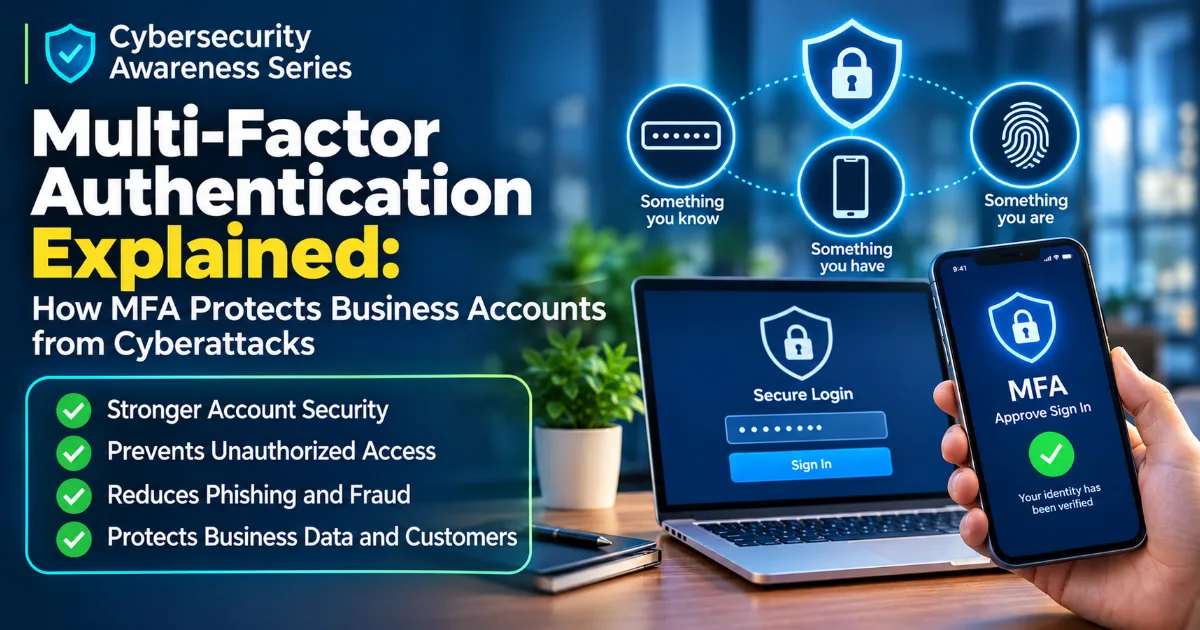
Instead of relying only on a password, MFA combines multiple authentication factors. These factors generally fall into three categories: something you know, something you have and something you are.
Something you know includes information such as a password, passphrase or PIN. Something you have refers to a physical or digital item under your control, such as a smartphone, hardware security key or registered authentication device. Something you are refers to a biometric characteristic, such as a fingerprint or facial recognition feature.
A system that combines factors from different categories provides stronger authentication than a password alone. For example, entering a password and then approving a sign-in using a registered hardware security key combines knowledge with possession.
It is important to understand that two steps do not automatically mean two factors. A password followed by a second security question may still rely on information the user knows. True MFA uses distinct categories of authentication factors.
What Is Two-Factor Authentication?
Two-factor authentication, known as 2FA, is a specific form of multi-factor authentication that requires exactly two authentication factors.
For example, a person may enter a password and then provide a verification code generated by an authenticator application. The password is something the user knows, while the registered device running the authenticator application represents something the user has.
Another example is signing in with a password and then confirming the request using a hardware security key. This creates an additional barrier if someone has stolen the password.
MFA can involve two or more factors, while 2FA specifically refers to two. In everyday discussions, the terms are sometimes used interchangeably, but they are not technically identical.
For most individuals, enabling 2FA or MFA on important accounts is a significant improvement over password-only authentication.
Why Passwords Alone Are Not Enough
Passwords can be compromised in several ways. A person may use a weak password that is easy to guess, reuse credentials from another website or enter a password into a fraudulent login page.
Data breaches can expose credentials stored by online services. Malware may capture keystrokes or steal browser sessions. Social engineering can persuade people to disclose passwords or approve unexpected login requests.
Even a long and unpredictable password cannot protect an account if the user voluntarily enters it into a convincing phishing website. Similarly, a password reused across multiple services can create a chain reaction when one of those services experiences a breach.
MFA adds another security layer. If an attacker obtains a password but does not have the required second factor, access may be blocked. This does not make an account impossible to compromise, but it raises the difficulty and can prevent many common attacks.
The Three Main Categories of Authentication Factors
Understanding authentication factors makes it easier to evaluate different security methods.
Something You Know
This category includes passwords, passphrases, PINs and other secret information that the user is expected to remember.
Knowledge-based authentication is widely used because it is relatively simple to implement. However, information can be guessed, stolen, observed or obtained through social engineering.
Passwords should therefore be unique and unpredictable. Avoid using personal details, common phrases or credentials reused on other services.
Something You Have
This category involves an item or device associated with the user. Examples include smartphones, authenticator applications, hardware security keys, smart cards and registered security devices.
An attacker who knows a password may still be unable to access the account without the registered device or security key.
However, possession-based factors also require protection. A lost smartphone, stolen hardware key or compromised device can create account recovery and security problems.
Something You Are
Biometric authentication uses physical or behavioural characteristics to help verify identity. Examples include fingerprints, facial recognition and certain voice recognition systems.
Biometric features can make authentication convenient because users do not need to remember a separate code. Many modern devices use biometrics to unlock a device or authorise access to stored passkeys.
Biometric authentication has limitations. Biometric characteristics cannot be changed as easily as passwords if compromised, and biometric systems vary in their security and implementation. They should be used through trusted devices and services with appropriate protection.
Common Types of Multi-Factor Authentication
Different services support different authentication methods. Some are more convenient, while others offer stronger protection against phishing and account takeover.
SMS Verification Codes
SMS-based authentication sends a temporary verification code to a registered mobile number. The user enters the code after providing a password.
This method is widely supported and is generally better than password-only access. However, it has weaknesses. Criminals may attempt SIM swap fraud, intercept messages in certain circumstances or persuade users to disclose the code through phishing.
SMS verification is useful when stronger options are unavailable, but users should prefer authenticator applications, passkeys or security keys where supported.
Email Verification Codes
Some services send a verification code or sign-in link to the user's registered email address. This can provide an additional step beyond the password used for the original service.
The security of this method depends heavily on the email account. If an attacker has already compromised the email account, they may also be able to access the verification message.
Protect the primary email account with strong authentication and avoid relying on an unsecured email address for recovery.
Authenticator Applications
Authenticator applications generate temporary verification codes, often using a time-based one-time password system. The user enters the current code after entering a password.
The codes change at regular intervals and are generated using a secret shared between the service and the authenticator application during setup.
Authenticator applications can be more secure than SMS because the codes are not delivered through the mobile network. However, attackers may still steal codes through real-time phishing or persuade users to disclose them.
Use a trusted authenticator application and protect the device on which it is installed.
Push Notifications
Some services send an authentication approval request to a registered device. The user receives a notification showing that a sign-in attempt is waiting for approval.
This method can be convenient, but it introduces a risk known as MFA fatigue. An attacker who has obtained a password may repeatedly send approval requests, hoping that the user will accidentally approve one.
Never approve a request that you did not initiate. If repeated unexpected prompts appear, change the password from a trusted device and review account activity.
Hardware Security Keys
A hardware security key is a physical device used to authenticate a user. It may connect through USB, NFC or another supported interface.
Many modern security keys support FIDO2 and WebAuthn standards. These technologies use public-key cryptography and can provide strong resistance to phishing because authentication is tied to the legitimate website's domain.
A security key is particularly useful for protecting email accounts, administrator accounts, business systems and other high-value services.
Users should consider registering a backup key and storing it securely. Losing the only registered key can make account recovery difficult.
Biometric Verification
Biometric verification may use a fingerprint or facial recognition system to authorise access. On many devices, biometrics unlock a locally stored credential or approve an authentication operation.
Biometrics are convenient, but the overall security depends on the device, implementation and account recovery process. Use trusted devices and keep their operating systems updated.
What Is a Passkey?
A passkey is a modern digital credential that allows a user to sign in without entering a traditional password. It is based on public-key cryptography and is designed to make authentication more secure and convenient.
When a passkey is created for a website or application, the device or credential provider generates a cryptographic key pair. The public key is registered with the service, while the private key remains protected by the user's device or credential provider.
During sign-in, the service sends a challenge. The user's device uses the private key to produce a cryptographic response. The service verifies that response using the registered public key.
The private key is not sent to the website as a reusable password. This makes passkeys resistant to many forms of credential theft and phishing.
Depending on the platform, a passkey may be stored on a device, protected by a password manager or synchronised through an approved ecosystem. The user may authenticate locally using a fingerprint, facial recognition or device PIN.
How Passkeys Work
Passkeys rely on public-key cryptography, which uses two mathematically related keys.
The public key can be stored by the website or application. The private key remains protected by the user's device or credential provider.
When the user signs in, the service issues a cryptographic challenge. The device uses the private key to sign that challenge. The service checks the signature using the registered public key.
Because the private key is not transmitted as a password, an ordinary fake login page cannot simply collect and reuse it in the same way that it can collect a typed password.
Passkeys are also designed to be associated with the website or application for which they were created. This domain binding helps prevent a passkey intended for a legitimate service from being used on a lookalike phishing website.
The actual user experience depends on the platform and service. Some passkeys remain on one device, while others can be synchronised through a credential provider. Users should understand how their chosen platform handles backup, synchronisation and recovery.
Passkeys vs Traditional Passwords
Traditional passwords are shared secrets. The user enters the secret into a website, and the service verifies whether it matches the stored password representation.
This creates several opportunities for compromise. A user may type a password into a fake website, reuse it across services or accidentally expose it through malware. Password databases may also become targets during data breaches.
Passkeys use cryptographic authentication instead of sending a reusable password. The private key remains protected by the user's device or credential provider, while the website stores the corresponding public key.
Passkeys can therefore reduce password reuse, credential phishing and some forms of account takeover. They also make sign-in easier because users may authenticate using the same local method they already use to unlock their devices.
However, passkeys do not eliminate every security risk. An attacker may target the user's device, cloud account, recovery process or support channels. Protecting the device and the credential provider remains important.
Benefits of Using Passkeys
Stronger Resistance to Phishing
Passkeys are associated with the legitimate service's domain. A fraudulent website cannot normally use a passkey registered for a different domain.
This makes passkeys significantly more resistant to conventional phishing than passwords and manually entered verification codes.
Reduced Password Reuse
Because users do not need to create and remember a different password for every passkey-enabled service, the problem of password reuse can be reduced.
Each service uses its own cryptographic credential rather than relying on a shared secret.
Convenient Authentication
Passkeys can make signing in faster. Users may authenticate with a fingerprint, facial recognition or device PIN rather than typing a password and waiting for a verification message.
Reduced Exposure of Reusable Secrets
A passkey does not require the user to send a reusable password to the website during sign-in. This reduces the risk of credentials being captured through fake login forms.
Support Across Devices
Depending on the service and platform, passkeys may be available across multiple devices through a supported credential provider. This can make it easier to use the same account securely from a phone, tablet or computer.
Are Passkeys a Replacement for Multi-Factor Authentication?
Passkeys and MFA are related, but they are not exactly the same concept.
A passkey is an authentication credential based on public-key cryptography. It may be used with a local user verification method, such as a device PIN or biometric check.
A typical passkey sign-in can provide strong authentication and may satisfy multi-factor requirements depending on the implementation and the assurance requirements of the service. However, not every passkey experience is technically identical.
MFA is a broader security concept involving multiple authentication factors. It can include passwords, security keys, authenticator applications and other methods.
Passkeys are best understood as a modern authentication approach that can replace traditional passwords and provide phishing-resistant protection when correctly implemented. Organisations should evaluate the authentication assurance of their chosen implementation rather than assuming that every passkey configuration meets every security requirement.
How to Enable Multi-Factor Authentication
The exact steps depend on the service, but the general process is similar across many websites and applications.
Step 1: Open the Official Account Settings
Sign in through the official website or application. Avoid using links in unexpected emails or messages.
Open the account settings and locate the security, privacy or sign-in section.
Step 2: Find the Authentication Options
Look for options such as two-factor authentication, multi-factor authentication, two-step verification or login security.
Some services offer several methods, including authenticator applications, security keys, SMS verification and passkeys.
Step 3: Choose a Suitable Method
Prefer phishing-resistant options such as passkeys or hardware security keys when supported. An authenticator application is generally a useful choice when these options are unavailable.
SMS can provide an additional layer where stronger methods are not supported, but it should not be treated as the strongest option.
Step 4: Register Your Device or Security Key
Follow the service's instructions to register the chosen authentication method. You may need to scan a QR code, approve a device notification or connect a physical security key.
Complete the verification process before leaving the settings page.
Step 5: Store Recovery Codes Securely
Some services provide backup or recovery codes. These may help you regain access if your registered device is lost.
Store recovery codes in a secure location, such as a protected password manager or another appropriate offline location. Do not leave them in an unprotected email draft or public document.
Step 6: Test the Sign-In Process
Sign out only when you are confident that you have a working recovery method. Test the authentication process using a trusted device.
Confirm that you can complete the sign-in and understand how to recover access if the device becomes unavailable.
How to Set Up a Passkey
Passkey setup varies by service, device and operating system, but the following process describes the general approach.
First, open the official website or application and access the account's security settings. Look for an option to create, add or manage passkeys.
Next, choose where the passkey should be stored. The service may offer to save it to the device, a supported password manager or an approved synchronisation service.
Follow the device prompts. You may be asked to use a fingerprint, face recognition or device PIN to confirm the action.
Once the passkey is registered, test it using the service's sign-in process. If you use several devices, check how the passkey can be accessed or synchronised across them.
Finally, review the account's recovery options. Make sure you understand what happens if the device or credential provider becomes unavailable.
How to Choose the Right Authentication Method
Not every account requires the same security configuration. The right method depends on the sensitivity of the information, the consequences of account compromise and the authentication options supported by the service.
For Email Accounts
Email accounts should receive strong protection because they are often used for password resets and account recovery.
Use a passkey or hardware security key where available. An authenticator application is another strong option. Review recovery addresses, phone numbers, connected devices and active sessions regularly.
For Banking and Financial Accounts
Use the authentication methods provided by your bank or financial institution. Enable transaction alerts and follow its security guidance.
Never share OTPs, PINs or approval requests with unexpected callers. If you receive a suspicious request, contact the institution through its official application or verified support channel.
For Social Media Accounts
Enable MFA or passkeys where available. Review connected applications, active sessions and recovery information.
Social media accounts can be used to impersonate individuals and send fraudulent messages to their contacts. Secure them carefully, even if they do not directly contain financial information.
For Business and Administrator Accounts
Business administrators should prefer phishing-resistant authentication, including hardware security keys or passkeys where supported.
Organisations should apply least-privilege access, monitor sign-in activity and establish recovery procedures. Administrative accounts should receive stronger protection than ordinary accounts because they may control important systems and sensitive records.
For Family Accounts
Help family members enable additional authentication on email, financial and social media accounts. Explain why unexpected sign-in requests should never be approved.
Keep recovery information secure and ensure that family members know how to contact the official service provider if they lose access.
Common MFA Attacks and How to Avoid Them
MFA improves account security, but attackers continue to develop methods for bypassing or manipulating authentication systems.
MFA Fatigue Attacks
In an MFA fatigue attack, criminals repeatedly send authentication approval requests after obtaining a user's password. They hope the user will become frustrated and approve one accidentally.
Never approve a request you did not initiate. If repeated prompts appear, change your password from a trusted device, review active sessions and report the activity to the service provider.
Real-Time Phishing
Some phishing attacks use fake websites that relay information to the legitimate service in real time. A victim may enter a password and an authentication code into the fake page, allowing the attacker to complete the sign-in attempt.
Passkeys and hardware security keys provide stronger protection because they are designed to authenticate against the legitimate domain rather than a lookalike site.
SIM Swap Attacks
A SIM swap attack attempts to transfer a victim's phone number to a SIM controlled by a criminal. If successful, the attacker may receive SMS verification codes.
Protect your mobile account using available security controls. If your phone suddenly loses network service without an obvious reason, contact your mobile provider through an official channel.
Social Engineering
Criminals may call or message victims while pretending to be technical support agents. They may ask users to share authentication codes or approve a sign-in request.
Never disclose verification codes or approve unexpected prompts. Contact the organisation independently if you need assistance.
Device Theft
A stolen device may create authentication risks, particularly if it is unlocked or poorly protected.
Use a strong device lock, enable encryption where available and activate remote device management. If a device is lost, use the official account and device security tools to revoke sessions or secure access.
What Happens If You Lose Your Authentication Device?
Losing a phone, hardware security key or other authentication device can make account access difficult. This is why recovery planning should be completed when MFA or passkeys are first configured.
Before a device is lost, register a backup authentication method if the service supports it. Store recovery codes securely and understand the official account recovery process.
If a smartphone is lost, use the relevant account security tools from another trusted device. Revoke sessions, remove the lost device from trusted-device lists where appropriate and contact the mobile provider if necessary.
If a hardware security key is lost, use a registered backup key or the service's official recovery process. Remove the missing key from the account once access has been restored.
If a passkey is synchronised through a credential provider, use the provider's official recovery process. Protect the account that manages the synchronised credentials because it may be central to restoring access.
Do not trust unsolicited callers or messages offering to recover accounts. Criminals may target people who have lost access and pretend to provide technical support.
Multi-Factor Authentication for Businesses
Businesses should treat authentication as a core part of their cybersecurity strategy. Employees often access customer records, internal applications, financial systems, cloud platforms and administrative tools.
A single compromised account can create significant operational and privacy risks.
Protect High-Privilege Accounts First
Administrator accounts, finance accounts, cloud management accounts and security tools should receive strong authentication requirements.
Where supported, use phishing-resistant methods such as passkeys or hardware security keys. Restrict administrative access and review permissions regularly.
Establish Central Identity Management
Organisations can use identity providers and single sign-on systems to manage access to multiple applications.
Central identity management can improve visibility and simplify account administration, but it also makes the identity provider a high-value target. Protect it with strong authentication, monitoring and carefully controlled administrator privileges.
Use Conditional Access
Conditional access policies can consider factors such as device status, sign-in risk, location and application sensitivity before allowing access.
These policies can help organisations apply stronger controls to unusual or high-risk sign-ins. They should be configured carefully to avoid creating unnecessary barriers for legitimate users.
Plan Authentication Recovery
Businesses should establish procedures for employees who lose devices, change phone numbers or leave the organisation.
Recovery should include identity verification, device revocation and access review. Helpdesk staff should receive training to recognise social engineering attempts that target account recovery.
Monitor Authentication Events
Security teams should monitor failed sign-ins, unusual access patterns, repeated authentication prompts and unexpected changes to account recovery settings.
Logging and alerts should support investigation without collecting unnecessary personal information.
Train Employees
Employees should understand the difference between a legitimate authentication request and an unexpected one. Training should explain phishing, MFA fatigue, fake support calls and secure device handling.
Staff should know how to report suspicious prompts and lost authentication devices immediately.
Common Myths About MFA and Passkeys
Myth 1: MFA Makes an Account Impossible to Hack
MFA reduces risk, but no authentication method eliminates every threat. Attackers may target devices, recovery processes, users or the systems that manage credentials.
Use MFA alongside strong passwords, secure devices and careful online behaviour.
Myth 2: SMS Authentication Is the Strongest Option
SMS codes are widely available and better than password-only access in many situations, but they can be affected by SIM swap fraud and phishing.
Prefer passkeys, hardware security keys or authenticator applications when supported.
Myth 3: Passkeys Are Just Saved Passwords
Passkeys are not simply passwords stored in a browser. They use public-key cryptography and do not require the user to send a reusable secret to the website during authentication.
Their security depends on the device, credential provider and recovery arrangements.
Myth 4: Biometrics Alone Protect Every Account
A fingerprint or face scan may unlock a device or authorise a credential, but the overall security also depends on device protection, account recovery and implementation.
Use biometrics through trusted devices and services.
Myth 5: MFA Is Only Necessary for Businesses
Individuals are also targets. Personal email, banking, social media and cloud storage accounts can contain valuable information and should be protected with additional authentication.
Myth 6: Passkeys Remove the Need for Account Recovery
Users can lose devices, forget device PINs or lose access to synchronisation accounts. Recovery remains important.
Register suitable backup methods and understand the service's official recovery process.
Building a Practical Authentication Security Routine
Start by identifying your most important digital accounts. Your primary email, financial services, cloud storage, social media and work accounts should receive priority.
Check which authentication options each service supports. Prefer passkeys or hardware security keys when available, particularly for accounts that control other services. Use authenticator applications where appropriate and enable SMS verification if stronger options are unavailable.
Review recovery information and store backup codes securely. Register a backup security key where supported. Keep your devices updated and protect them with strong screen locks.
Never approve a sign-in request that you did not initiate. Do not share OTPs or authentication codes with unexpected callers. If you receive repeated authentication prompts, investigate immediately.
Review active sessions and connected devices periodically. Remove access that you no longer recognise or need. If an authentication device is lost, use official security tools to revoke access and restore your account safely.
For businesses, establish clear authentication policies, protect administrator accounts, train employees and test recovery procedures. Security should be designed around the sensitivity of the systems and information being protected.
Conclusion
Multi-factor authentication and passkeys are important developments in online account security. Passwords alone are vulnerable to phishing, reuse, data breaches and automated attacks. MFA adds additional verification factors, while passkeys use public-key cryptography to provide a more phishing-resistant way to sign in.
Individuals should enable additional authentication on important accounts, particularly email, banking, cloud storage and social media. Passkeys and hardware security keys offer strong protection where supported, while authenticator applications provide a useful alternative. SMS verification can still improve security compared with passwords alone, but stronger methods should be preferred when available.
Security also depends on recovery planning. Keep backup methods secure, protect devices, review account activity and understand how to regain access if an authentication device is lost.
Businesses should apply stronger authentication to sensitive and administrative systems, monitor suspicious sign-ins and train employees to recognise social engineering attacks.
No single security feature can prevent every threat. However, combining strong authentication with secure devices, careful account management and informed behaviour makes unauthorised access significantly more difficult.
#MultiFactorAuthentication #Passkeys #CybersecurityAwareness #OnlineSafety #AccountSecurity