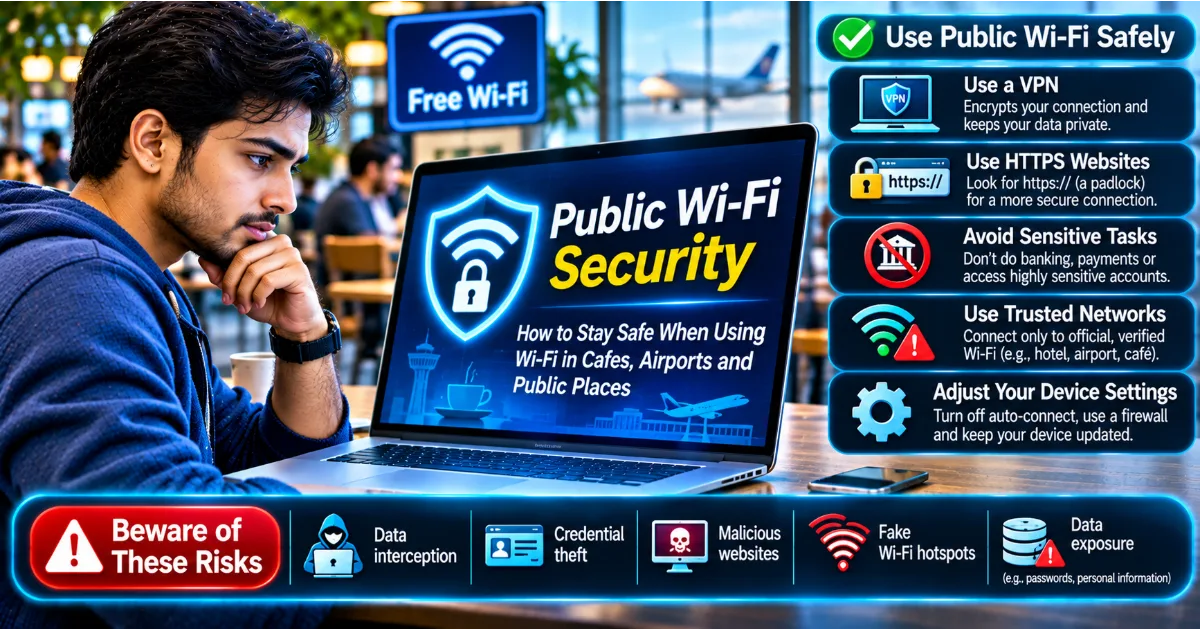
Public Wi-Fi has become an everyday convenience. People connect to wireless networks in cafes, airports, railway stations, hotels, shopping centres, libraries, universities, hospitals and other public places. These networks allow travellers to check travel information, employees to work remotely, students to attend online classes and customers to access digital services without using their mobile data.
Although public Wi-Fi offers convenience, it can introduce cybersecurity risks when users connect without checking the network or understanding how their devices communicate. An unfamiliar wireless network may be operated by a legitimate business, but it could also be a fake hotspot created by a criminal. Some networks may have weak security settings, poorly configured equipment or deceptive login pages designed to collect personal information.
Cybercriminals may use these environments to distribute malicious links, imitate legitimate networks, redirect users to fraudulent websites or attempt to capture information sent through insecure connections. Even when a network is genuine, users can expose themselves by sharing files, leaving automatic connections enabled or accessing sensitive accounts on devices that are not properly secured.
Public Wi-Fi is not automatically dangerous, and modern websites and applications use encryption to protect much of the information exchanged between users and services. However, users should not assume that every network is trustworthy simply because it is available in a familiar location.
Public Wi-Fi security involves understanding the risks, verifying the network, protecting devices, using encrypted connections and choosing the right activities while connected. This article explains how public wireless networks work, how cybercriminals exploit them, how to recognise suspicious hotspots and how individuals and businesses can stay safer when using Wi-Fi outside trusted environments.
Continue Reading
What Is Public Wi-Fi?
Public Wi-Fi is a wireless internet service made available to customers, visitors, travellers or members of the public. It is commonly provided by businesses, transport facilities, educational institutions, local authorities and other organisations.
A cafe may provide free Wi-Fi to customers, while an airport may operate a network throughout its terminals. Hotels may offer wireless access to guests, and libraries may provide connectivity for visitors using personal devices.
These networks generally allow devices such as smartphones, laptops and tablets to connect to a wireless access point. The access point communicates with the wider network, allowing connected devices to reach websites, applications and online services.
Some public networks are open, meaning they do not require a wireless password to join. Others use a shared password printed on a receipt, displayed at a reception desk or provided to customers. Certain networks require users to complete a sign-in process through a captive portal before accessing the internet.
The presence of a password does not automatically make a public network secure. A shared password may be known by many people, and users may not know who operates the network or how it is configured. Security also depends on encryption, network isolation, router configuration and the protection provided by the websites and applications being accessed.
Why Do People Use Public Wi-Fi?
Public Wi-Fi is popular because it provides internet access when a private connection is unavailable or inconvenient.
Travellers use airport and railway station networks to check bookings, download travel information, communicate with family members and access work documents. Customers in cafes may use Wi-Fi to browse websites, attend meetings or complete online tasks. Students may rely on public networks when studying outside their homes.
Remote employees and freelancers may work from hotels, coworking spaces and other shared locations. Public connectivity can help them remain productive while travelling or meeting clients.
Businesses also provide Wi-Fi to improve the customer experience. Restaurants, hotels, shopping centres and other establishments may offer wireless access as part of their service.
The problem is not the availability of public internet access. The problem arises when users treat every available network as trustworthy and ignore the security of their devices, accounts and online activities.
How Public Wi-Fi Works
A wireless access point allows nearby devices to connect to a local network using radio signals. When a user selects a Wi-Fi network and successfully connects, the device communicates with the access point.
The network usually provides an internet connection through a router or other networking equipment. The router forwards traffic between connected devices and the wider internet according to its configuration.
Some networks use encryption to protect wireless communication between devices and the access point. Others may be open or use shared credentials. The exact security depends on the network's technology and configuration.
Even when the wireless connection is not encrypted, modern websites using HTTPS can protect the information exchanged between the browser and the website. This is an important distinction. An open Wi-Fi network does not automatically mean that every password or message sent through it is visible to everyone nearby.
However, users can still face risks from fake hotspots, malicious redirects, fraudulent login pages, insecure applications, compromised devices and poorly configured networks. Network-level protection and application-level encryption work together, but neither should be treated as a complete substitute for careful security practices.
Major Security Risks of Public Wi-Fi
Understanding common threats makes it easier to identify suspicious situations and avoid unsafe behaviour.
Fake Wi-Fi Hotspots
A fake Wi-Fi hotspot is a wireless network created to imitate a legitimate public network. A criminal may set up a network with a name similar to that of a nearby cafe, hotel or airport.
For example, a visitor may see two networks with nearly identical names and select the wrong one. The fraudulent network may display a convincing sign-in page or simply provide internet access while collecting information about connected devices and their activity.
The danger is not that every connection automatically reveals all personal information. Properly encrypted applications can still protect data. However, a fake hotspot can create opportunities for deception, redirection and other attacks.
Always confirm the exact network name with an employee, reception desk or official information display. Do not assume that the network with the strongest signal or most familiar name is genuine.
Evil Twin Attacks
An evil twin is a type of rogue wireless access point designed to imitate a legitimate network. It may use a familiar network name to persuade nearby users to connect.
Once a device connects, the operator may attempt to redirect the user to fraudulent websites, present fake login pages or interfere with access to online services.
A convincing network name is not proof of legitimacy. Verify the network through an independent source before connecting, especially in crowded locations where multiple wireless networks may be available.
Man-in-the-Middle Attacks
A man-in-the-middle attack occurs when an attacker positions themselves between two communicating parties and attempts to observe, alter or relay information exchanged between them.
On poorly secured networks, attackers may try to intercept traffic or manipulate communication. Modern encryption significantly reduces the information that can be read or altered, but insecure websites and applications may remain vulnerable.
Use HTTPS websites, keep applications updated and avoid ignoring browser security warnings. A VPN can add another layer of protection by encrypting traffic between the device and the VPN service, but it does not make every website or application safe.
Packet Sniffing
Packet sniffing involves capturing network traffic for analysis. Network administrators use packet analysis for legitimate troubleshooting and security monitoring, but criminals may also attempt to capture information transmitted over inadequately protected networks.
The usefulness of captured traffic depends on its encryption and the protocols being used. Properly protected HTTPS traffic is not ordinarily readable as plain text simply because someone captures network packets.
Nevertheless, unsecured protocols, exposed metadata and poorly protected applications can create privacy risks. Avoid using outdated services that transmit sensitive information without encryption.
Malicious Captive Portals
A captive portal is a webpage that appears when a user connects to certain public Wi-Fi networks. It may ask users to accept terms, enter a room number, provide an access code or complete a registration process.
Legitimate portals are commonly used by hotels, airports and other organisations. However, criminals can create fake portals that imitate these pages.
A fraudulent portal may ask for unnecessary personal information, email credentials, banking details or payment card information. It may also encourage users to download an application or open an unfamiliar file.
Be suspicious of a public Wi-Fi sign-in page that requests information unrelated to providing network access. When in doubt, ask the establishment to confirm the correct sign-in process.
DNS Manipulation and Malicious Redirection
The Domain Name System, or DNS, helps translate website names into network addresses. If DNS settings are manipulated, users may be directed to an unintended destination when attempting to visit a website.
A malicious network operator may attempt to redirect users to fraudulent pages that imitate familiar services.
Pay attention to the website address in the browser. If a familiar website suddenly displays an unexpected login page, unusual domain name or security warning, stop and verify the destination.
Using trusted DNS settings, secure connections and reputable security tools can reduce certain risks, but users should still verify important websites independently.
Malware Distribution
Public Wi-Fi may be used as an environment for distributing malicious links, fake software updates or deceptive downloads.
A user may encounter a page claiming that a browser, media player or device component needs an urgent update. The download may actually contain malware.
Do not install software or browser extensions simply because a public Wi-Fi portal or unexpected webpage recommends them. Obtain updates through the operating system's official update mechanism or the application's trusted update process.
Shoulder Surfing and Physical Privacy
Not every public Wi-Fi risk is technical. People sitting nearby may observe a screen, watch passwords being entered or photograph information displayed on a laptop.
This is known as shoulder surfing. It can occur in cafes, airports, libraries and shared workspaces.
Position screens away from public view when handling confidential information. Use privacy filters where appropriate, lock devices when stepping away and avoid leaving sensitive documents visible.
Session Hijacking
A session is the authenticated connection that allows a user to remain signed in after entering credentials. If an attacker obtains a valid session token through a security weakness, they may attempt to use it to access the account without knowing the password.
Modern websites use security controls to protect session cookies and authentication tokens, but poorly configured applications may still create risks.
Keep browsers updated, avoid suspicious extensions and sign out of sensitive services when using shared or untrusted devices. Never save login credentials on a public computer.
Is Public Wi-Fi Safe for Online Banking?
Online banking is a sensitive activity because it involves financial information, account access and potentially irreversible transactions.
Modern banking applications and websites generally use strong encryption and additional authentication controls. This means that connecting to public Wi-Fi does not automatically expose banking passwords or transactions.
However, public networks can still create opportunities for phishing, fake login pages, malicious redirects and social engineering. A criminal may attempt to convince a user to enter banking details into a fraudulent website or disclose an authentication code.
For highly sensitive financial activities, a trusted mobile data connection or private network is generally preferable. If public Wi-Fi is the only available option, use the bank's official application, verify the service carefully, ensure the connection is secure and never respond to unexpected requests for OTPs, PINs or passwords.
Enable transaction alerts and multifactor authentication where supported. If anything unusual appears, stop the transaction and contact the bank through an official channel.
Is Public Wi-Fi Safe for Email and Social Media?
Email and social media accounts contain personal information and can be used to access other services.
A compromised email account may allow criminals to reset passwords on shopping websites, cloud storage platforms and other connected accounts. A compromised social media profile may be used to impersonate the owner, send fraudulent messages or distribute malicious links.
Use unique passwords and multifactor authentication. Access services through official applications or verified websites. Do not enter credentials into unexpected login pages.
Avoid leaving accounts signed in on public computers. If you must use a shared device, sign out completely and avoid saving passwords or allowing the browser to remember your account.
How to Identify a Suspicious Public Wi-Fi Network
Recognising warning signs can help users avoid fraudulent networks.
Check the Network Name
Look carefully at the network name before connecting. Criminals may create names that resemble legitimate businesses or transport facilities.
A small difference in spelling, punctuation or wording can indicate a fake network. Ask an employee to confirm the exact name.
Avoid Unfamiliar Networks With No Clear Owner
A network name such as "Free Airport Internet" or "Unlimited Cafe Wi-Fi" may look attractive, but it does not identify who operates it.
Prefer networks advertised through official signs or confirmed by staff. Avoid connecting to unknown networks simply because they offer free access.
Be Careful With Unexpected Login Pages
A legitimate network may use a captive portal, but it should not normally require your email password, bank credentials or unrelated account information.
If a portal requests unusual personal details or payment information, ask the provider to explain why the information is necessary.
Watch for Unusual Browser Warnings
Do not ignore certificate warnings or browser security messages. These warnings may indicate that a connection cannot be verified.
A public Wi-Fi portal may sometimes require a sign-in step before internet access is available, but that does not justify entering sensitive information into an unverified page.
Confirm Payment Requests
Some networks provide paid access, particularly in hotels, transport facilities or premium business locations. Confirm the payment process through the official provider.
Do not enter card details into a page reached through an unexpected pop-up or suspicious redirect.
Practical Ways to Stay Safe on Public Wi-Fi
Safe public Wi-Fi use is based on a combination of network verification, device protection and careful online behaviour.
1. Verify the Network Before Connecting
Ask staff for the official network name and password. In an airport, hotel or other large facility, use information provided through official signs or the organisation's verified communication channels.
Do not assume that a familiar name belongs to the legitimate provider.
2. Use a Reputable VPN When Appropriate
A Virtual Private Network, or VPN, creates an encrypted connection between your device and a VPN server. It can help protect network traffic from observation on untrusted local networks.
Choose a reputable provider with transparent privacy practices, appropriate security features and a clear explanation of how it handles data.
A VPN does not make a device immune to malware, phishing or fraudulent websites. It also does not guarantee anonymity. The VPN provider may be able to observe certain connection information, so choosing a trustworthy service matters.
For work-related access, use the VPN approved by your organisation.
3. Prefer HTTPS Websites
HTTPS encrypts communication between the browser and the website. It helps protect information from being read or modified while travelling across the network.
Check that the browser shows a secure connection and that the domain name is correct. Remember that a fraudulent website can also use HTTPS. Encryption protects the connection to the website, but it does not prove that the website itself is legitimate.
4. Disable Automatic Wi-Fi Connections
Many devices can automatically connect to previously used wireless networks. This feature can be convenient at home, but it may create risks in public locations.
Disable automatic joining for unfamiliar networks and remove old public networks that are no longer needed. Your device should not connect to a network merely because its name matches one saved earlier.
5. Turn Off Unnecessary File Sharing
File sharing and network discovery features may allow devices to identify or communicate with other devices on the same local network.
When using public Wi-Fi, disable unnecessary sharing features. Set the network profile to public where your operating system provides that option.
Do not make folders, printers or personal devices discoverable unless there is a clear and trusted reason.
6. Keep Your Device Updated
Operating system and application updates often include security fixes. Devices running outdated software may contain vulnerabilities that attackers can exploit.
Install updates through official channels and keep browsers, security applications and networking components current.
Do not download an update from a random website or a message displayed by an unfamiliar public network.
7. Use a Firewall
A firewall helps control network traffic entering and leaving a device. Modern operating systems include firewall capabilities that can help protect devices on unfamiliar networks.
Keep the firewall enabled and use the recommended public network security profile. Do not disable security protections simply because a website or unknown person claims they are blocking internet access.
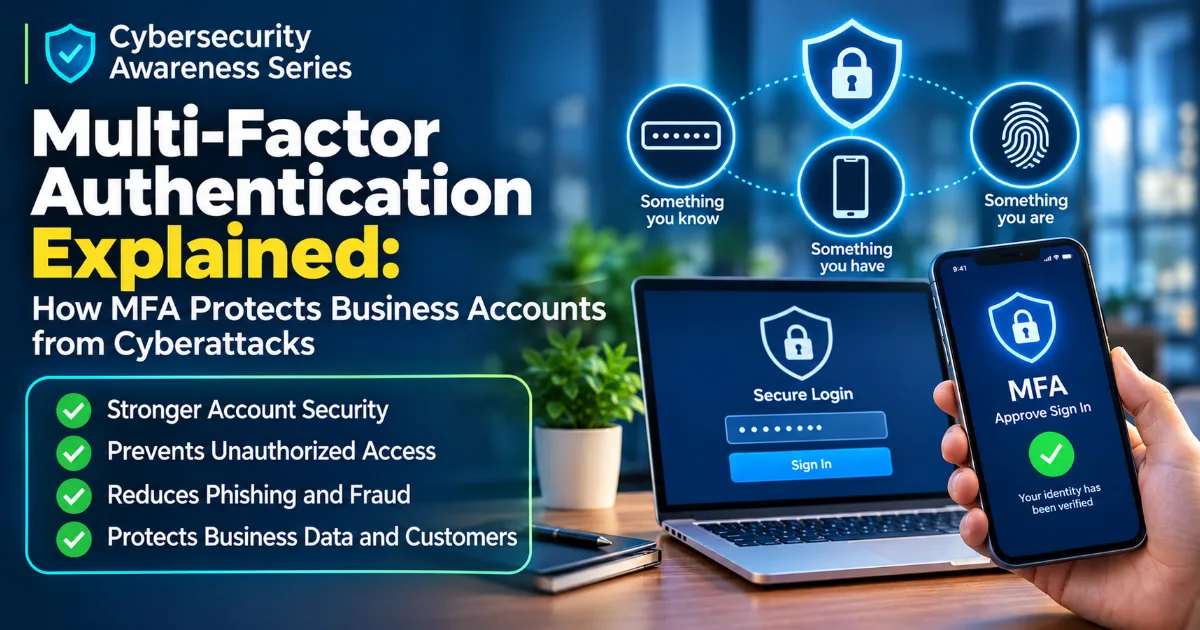
8. Use Multifactor Authentication
Enable MFA on important accounts, especially email, banking, cloud storage and work services.
If a password is stolen, a second authentication factor may prevent an attacker from accessing the account. Prefer passkeys, hardware security keys or authenticator applications where supported.
Never approve a login request that you did not initiate, even if you are connected to a public network.
9. Avoid Sensitive Transactions When Possible
Consider postponing highly sensitive activities until you have access to a trusted connection.
Examples include changing financial account details, managing business administration systems, accessing confidential company records or entering sensitive identity information.
If the task is urgent, use a trusted device, verified application and secure connection. Follow your organisation's security requirements when handling business information.
10. Turn Off Wi-Fi When You Are Finished
Disconnect from public Wi-Fi when you no longer need it. This reduces the time your device remains exposed to unfamiliar networks.
You can also remove the network from your saved list if you do not expect to use it again.
11. Use a Secure Screen Lock
Protect your smartphone, laptop and tablet with a strong PIN, password or biometric authentication.
Enable automatic screen locking after a short period of inactivity. If you leave a device unattended, lock it first.
12. Be Careful With Downloads
Avoid downloading files, software or browser extensions from unfamiliar websites while connected to public Wi-Fi.
Use official application stores and trusted vendor websites. Scan unexpected attachments and avoid opening files from unknown senders.
13. Use Your Mobile Hotspot for Sensitive Work
A personal mobile hotspot can be a useful alternative when you need a connection you control more directly.
Protect the hotspot with a strong password, use supported security settings and avoid sharing access unnecessarily. Keep the phone updated and monitor connected devices.
Mobile hotspots are not automatically risk-free, but they may provide a more controlled alternative to an unfamiliar public network.
Public Wi-Fi Safety for Smartphones
Smartphones are frequently used on public networks because they are portable and convenient. However, they contain email accounts, photographs, payment applications, authentication tools and personal messages.
Keep the operating system and applications updated. Use a strong screen lock and enable device-finding features where available.
Disable automatic connections to unknown networks. Review saved Wi-Fi networks and remove those that are no longer needed.
Install applications only from trusted sources. Review application permissions and avoid granting unnecessary access to contacts, files, location or other sensitive information.
Be cautious when a Wi-Fi login page asks you to install a certificate, configuration profile or unfamiliar application. Such requests can change how your device handles network traffic or manages connections. Do not proceed unless the requirement has been independently verified by a trusted provider or your organisation's IT team.
When finished, disconnect from the network and check that your phone has returned to a trusted connection.
Public Wi-Fi Safety for Laptops
Laptops are often used for remote work, online meetings and document access. They may contain confidential files, saved passwords and access to business systems.
Set the network profile to public when connecting to an unfamiliar network. Disable network discovery and file sharing unless specifically required.
Keep the firewall enabled and install operating system and browser updates. Use a standard user account for everyday activities rather than working with administrator privileges unnecessarily.
Avoid saving passwords in browsers on shared or borrowed computers. Use a trusted password manager and ensure that its vault is locked when not in use.
If your employer provides a secure remote access solution, follow the organisation's instructions. Do not use unapproved applications or personal file-sharing services to transfer confidential work documents.
Is a VPN Enough to Stay Safe?
A VPN is a useful security tool, but it is not a complete cybersecurity solution.
It encrypts traffic between your device and the VPN server, helping reduce exposure to people monitoring the local network. However, it does not prevent you from entering credentials into a fake website, downloading malware or approving a fraudulent authentication request.
A VPN also does not replace HTTPS. Websites should still use secure connections, and users should verify the domain before entering sensitive information.
The provider operating the VPN becomes an important part of the trust relationship. A service with poor privacy practices may collect information about users' connections or browsing activity.
Choose a reputable provider, understand its privacy policy and use an approved business VPN when accessing workplace systems.
What to Do If You Suspect a Public Wi-Fi Attack
If you believe that you connected to a fake network or entered information into a suspicious portal, act promptly.
Disconnect From the Network
Turn off Wi-Fi or disconnect from the suspicious network. Do not continue using a connection that may be controlled by an attacker.
If the device behaves unusually, avoid entering further passwords or sensitive information until the situation has been assessed.
Change Exposed Passwords
If you entered a password into a suspicious website, change it through the official service using a trusted device and connection.
If the password was reused elsewhere, update it on every affected account. Secure your primary email account first if it may be exposed.
Review Account Activity
Check recent login activity, active sessions, recovery details and connected devices.
Sign out of unfamiliar sessions and remove unauthorised access. Enable or reset MFA where appropriate.
Contact Your Bank if Financial Information Was Exposed
If you entered payment details or banking credentials into a suspicious page, contact your bank through its official application or verified phone number.
Explain what happened and follow its instructions. Monitor transactions and report any unauthorised activity promptly.
Scan the Device
If you downloaded a suspicious file or installed an unfamiliar application, use a trusted security solution to examine the device.
Remove malicious applications where appropriate and seek professional assistance if you suspect a serious compromise.
Report the Incident
Inform the organisation responsible for the network if you believe its Wi-Fi service has been impersonated. This may help protect other visitors.
If financial fraud or cybercrime has occurred, report it through the appropriate official channels in your country. Preserve suspicious messages, screenshots and transaction records where possible.
Public Wi-Fi Security for Businesses
Businesses that provide public Wi-Fi have a responsibility to protect customers and maintain a secure network environment. Poorly configured wireless access can create risks for visitors and the organisation itself.
Separate Guest and Internal Networks
Guest Wi-Fi should be separated from internal business systems. Customers should not be able to access staff computers, point-of-sale systems, printers, administrative interfaces or confidential business resources.
Network segmentation and appropriate access controls help limit the impact of a compromised guest device.
Use Modern Wireless Security
Businesses should use supported wireless security standards and keep access points updated. Network equipment should be configured securely, with default administrator credentials replaced and management interfaces protected.
Open networks may be appropriate in certain public environments, but businesses should understand the risks and provide additional safeguards.
Apply Client Isolation
Client isolation can prevent connected guest devices from communicating directly with one another on the local network.
This can reduce certain risks associated with shared networks, although it does not replace encryption or secure application design.
Provide Clear Network Information
Display the official Wi-Fi network name and explain the correct connection process. Employees should know how to answer customer questions about legitimate networks.
Clear communication can reduce the chance that visitors connect to a fake hotspot.
Monitor Network Activity Responsibly
Businesses should monitor network performance and security events to identify unusual activity, unauthorised access points and possible misuse.
Monitoring should be proportionate, transparent and consistent with applicable privacy and data protection requirements.
Keep Network Equipment Updated
Wireless routers, access points and controllers require regular maintenance. Install security updates, remove unsupported equipment and review configurations periodically.
Default passwords and unnecessary management services should not remain enabled.
Establish an Incident Response Plan
Businesses should know how to respond if a rogue access point, compromised router or data exposure is discovered.
The plan should identify responsible employees, technical response steps, customer communication procedures and any applicable reporting obligations.
Public Wi-Fi and Remote Working
Remote employees may work from cafes, hotels, coworking spaces and transport facilities. This creates additional responsibilities because work devices may have access to confidential information and internal business systems.
Employees should use organisation-approved VPN and identity management solutions. Sensitive documents should be accessed through approved platforms rather than downloaded onto unmanaged devices.
Avoid discussing confidential matters where nearby people can overhear conversations. Position screens carefully and use privacy filters when appropriate.
Do not leave laptops or phones unattended. Lock devices before stepping away, even for a short period.
Organisations should establish clear remote working policies that explain acceptable networks, device security, authentication requirements, file handling and incident reporting.
Common Myths About Public Wi-Fi
Myth 1: Every Public Wi-Fi Network Is Dangerous
Public Wi-Fi is not automatically unsafe. Many organisations operate properly managed networks, and modern encrypted applications provide meaningful protection.
The important point is to verify the network and maintain secure device and account settings.
Myth 2: A Password-Protected Network Is Always Secure
A shared Wi-Fi password does not prove that the network is well configured or operated by a trustworthy provider. Many visitors may know the same password.
Security depends on the network's design, encryption, access controls and the services being used.
Myth 3: A VPN Makes Every Online Activity Safe
A VPN protects traffic between the device and the VPN server, but it cannot prevent phishing, malware installation, fraudulent payments or unsafe account recovery.
It should be used as one part of a broader security strategy.
Myth 4: HTTPS Means the Website Is Genuine
HTTPS protects communication with a website, but fraudulent websites can also use encrypted connections.
Always check the domain name and verify that you are using the intended service.
Myth 5: Only Laptops Need Public Wi-Fi Protection
Smartphones and tablets also contain sensitive information. They require updates, strong screen locks, secure applications and careful network settings.
Myth 6: Disconnecting Is the Only Necessary Precaution
Disconnecting from an unfamiliar network is useful, but users should also review accounts if sensitive information may have been exposed. Changing passwords and checking account activity may be necessary after a suspected attack.
A Practical Public Wi-Fi Safety Checklist
Before connecting, confirm the network name with the provider and avoid unfamiliar hotspots. Check whether the sign-in page appears legitimate and do not provide unnecessary personal information.
While connected, use HTTPS websites and a reputable VPN where appropriate. Keep your firewall enabled, disable unnecessary sharing and avoid installing unknown software. Use MFA and avoid approving unexpected authentication requests.
Before performing sensitive tasks, consider whether a trusted mobile connection would be more appropriate. If you must access an important account, use its official application or verified website.
When finished, disconnect from the network, turn off automatic joining for unfamiliar hotspots and remove saved networks you no longer need. Review account activity if anything suspicious occurred.
For businesses, keep guest networks separated from internal systems, update access points, protect administrative settings and communicate the official network name clearly.
Conclusion
Public Wi-Fi provides valuable convenience for people who travel, study, work remotely or spend time in shared spaces. However, connecting to an unfamiliar network without taking precautions can expose users to fake hotspots, malicious portals, phishing attempts, insecure applications and other cybersecurity threats.
The safest approach is to verify the network before connecting, protect devices with current security updates, use encrypted websites, disable unnecessary sharing and enable multifactor authentication. A reputable VPN can provide an additional layer of protection, but it does not replace careful browsing or secure account practices.
Avoid unnecessary sensitive transactions on unfamiliar networks, never share OTPs or passwords with unexpected callers and do not install software simply because a public Wi-Fi portal asks you to do so. If you suspect that information has been exposed, disconnect, secure affected accounts and contact the relevant service providers.
Businesses also have an important role. They should separate guest networks from internal systems, maintain wireless equipment, communicate legitimate network details and respond promptly to security incidents.
Public Wi-Fi can be used responsibly when people understand its limitations. A few consistent precautions can help protect personal information, financial accounts and work data while keeping the convenience of internet access available wherever it is needed.
#PublicWiFiSecurity #CybersecurityAwareness #OnlineSafety #WiFiSecurity #DigitalPrivacy