The internet has become an essential part of everyday life. People use web browsers to communicate, work, study, shop, manage finances, access government services, read news, watch videos, and explore new opportunities. With a few clicks, we can access information and services from almost anywhere in the world. However, this convenience also exposes users to websites, downloads, advertisements, and online interactions designed to steal information, install malicious software, or manipulate people into making unsafe decisions.
Many cybersecurity incidents begin with an ordinary browsing activity. Someone clicks a link received through an email, downloads a document from an unfamiliar website, enters login credentials on a fake page, or installs a browser extension without checking its permissions. These actions may appear harmless, but they can expose personal information, compromise accounts, or infect devices.
Safe browsing is the practice of using the internet carefully while recognising and avoiding common digital threats. It involves checking website addresses, understanding browser security indicators, downloading files from trusted sources, managing permissions, avoiding suspicious advertisements, and keeping software updated.
A secure browsing experience does not depend on one particular browser or security application. It requires a combination of awareness, good habits, appropriate technology, and responsible decision-making. Even experienced internet users can encounter fraudulent websites, so everyone should understand how to identify warning signs before sharing information or downloading content.
This article explains how malicious websites operate, how to recognise suspicious links and downloads, what browser security indicators actually mean, how to protect personal information, and which habits can help individuals and organisations browse the internet more safely.
Continue Reading
What Is Safe Browsing?
Safe browsing refers to the practices and precautions used to reduce cybersecurity risks while accessing websites, online services, and internet-based content.
It includes checking whether a website is legitimate before entering sensitive information, avoiding suspicious downloads, protecting login credentials, managing cookies and permissions, and keeping browsers and devices updated.
Safe browsing also involves understanding that not everything available online is trustworthy. A website may contain misleading advertisements, fraudulent offers, malicious files, fake login forms, or deceptive instructions designed to influence visitors.
The objective is not to avoid the internet or become suspicious of every website. It is to make informed decisions about where to browse, what to download, and which information to share.
A safe browsing habit should become part of everyday digital behaviour, just like locking a door before leaving home. The more consistently people apply these practices, the less likely they are to become victims of common online threats.
Why Safe Browsing Matters
1. Protection Against Personal Information Theft
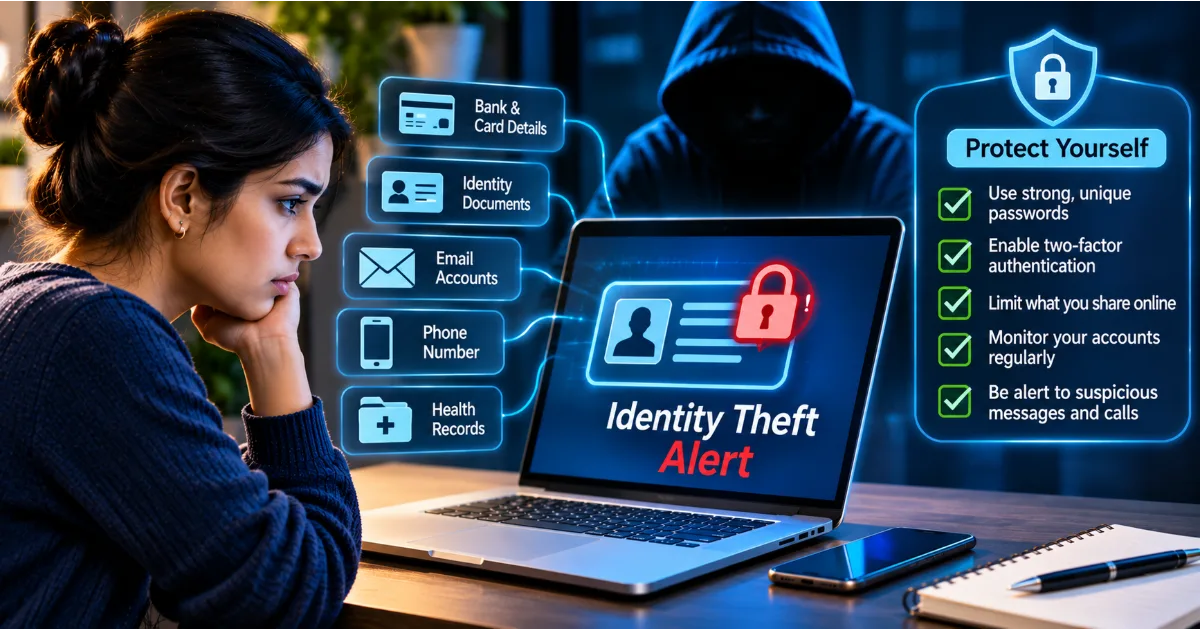
Websites may request names, email addresses, phone numbers, residential addresses, identification documents, and other personal details. Sharing this information with an untrustworthy website can expose users to identity theft, impersonation, and targeted scams.
Criminals may collect information through fake registration forms, fraudulent surveys, imitation shopping websites, and phishing pages. Once collected, personal information can be misused or combined with data obtained from other sources.
Safe browsing helps users recognise suspicious requests and verify whether a website genuinely needs the information it asks for.
2. Prevention of Malware Infections
Some websites distribute malicious software disguised as useful applications, documents, browser updates, media players, or security tools.
A user who downloads and opens an infected file may unintentionally install malware. Depending on its purpose, the software may steal passwords, monitor activity, encrypt files, or provide unauthorised access to the device.
Downloading software only from trusted sources and avoiding unexpected files can significantly reduce this risk.
3. Protection of Financial Accounts
Online banking, payment applications, shopping platforms, and financial services are common targets for cybercriminals.
Fake websites may imitate legitimate payment pages and collect card details, login credentials, or verification codes. Fraudulent shopping portals may collect payment information without delivering the promised products.
Safe browsing practices help users verify the identity of financial websites before entering sensitive information.
4. Protection of Online Accounts
A fraudulent login page can look almost identical to a genuine website. If a user enters their password on that page, the attacker may capture the credentials and attempt to access the real account.
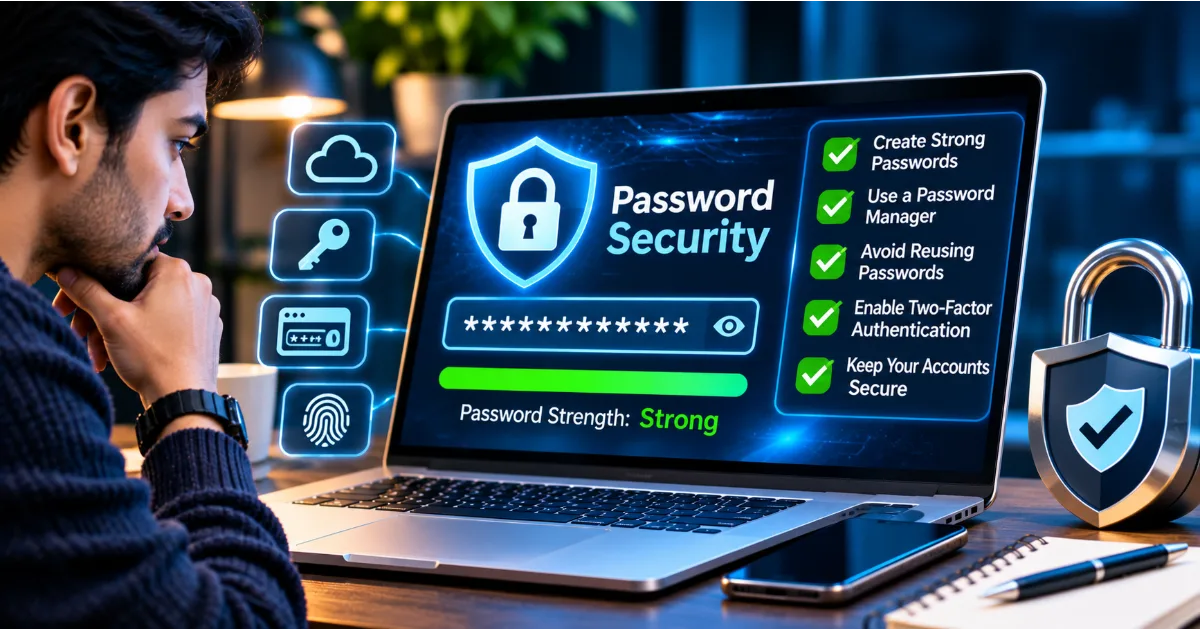
Checking website addresses, avoiding unexpected login links, and using password managers and phishing-resistant authentication methods can reduce the likelihood of successful account theft.
5. Protection of Children and Families
Children and young users may encounter inappropriate content, misleading advertisements, fake gaming downloads, fraudulent rewards, and websites that request unnecessary personal information.
Safe browsing education helps younger users recognise suspicious activity and understand when they should ask a trusted adult for assistance.
Parents and educators can support safer internet use through age-appropriate guidance, privacy settings, content controls, and open conversations about online risks.
Understanding Malicious Websites
A malicious website is a website designed or compromised to perform harmful activities. Its purpose may be to steal information, distribute malware, deceive visitors, or redirect users towards fraudulent services.
Not every malicious website looks suspicious. Some imitate trusted brands, use professional designs, display copied logos, and include convincing descriptions. Others may be legitimate websites that have been compromised by attackers.
Understanding common website threats makes it easier to identify situations that require caution.
Phishing Websites
Phishing websites imitate legitimate services to trick visitors into entering confidential information.
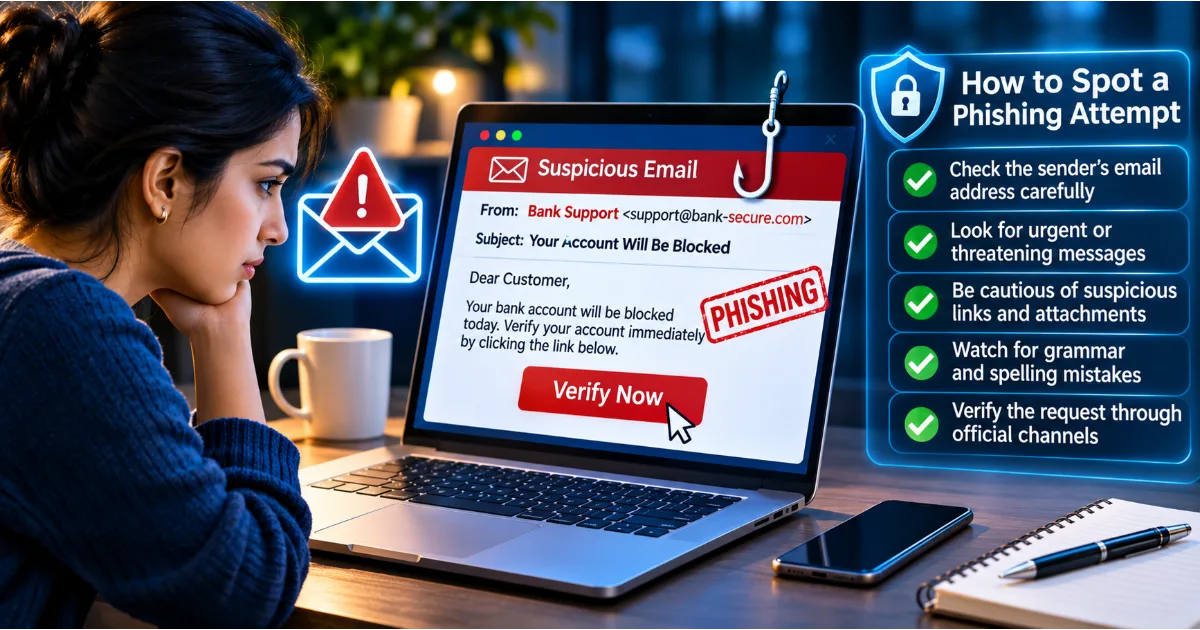
A fake banking website, for example, may display the same colours, logo, and login form as a real bank. The page may claim that the user's account requires urgent verification. When the visitor enters a username and password, the information is captured by the attacker.
Phishing websites may also imitate email services, social media platforms, government portals, online marketplaces, and recruitment websites.
The safest response to an unexpected login request is to open the official application or type the known website address independently rather than following a link in an unsolicited message.
Fake Shopping Websites
Fraudulent shopping websites often advertise products at unusually low prices. They may copy photographs, descriptions, and branding from genuine retailers.
Their purpose may be to collect payment information, steal personal details, or take money without delivering products.
Before buying from an unfamiliar online store, investigate the business, examine its contact and return information, review independent customer experiences, and check whether payment methods provide appropriate protection.
An unusually attractive discount should not replace basic verification.
Fake Government and Service Portals
Criminals sometimes create websites that imitate government departments, tax services, identity registration portals, educational institutions, or utility providers.
These websites may request identification details, payment information, or login credentials under the pretext of completing an application or avoiding a penalty.
Always verify official government services through recognised government domains and independently confirmed communication channels. Be especially cautious when an unfamiliar website requests sensitive identification documents or immediate payment.
Malvertising Websites
Malvertising refers to malicious advertising distributed through online advertising networks or compromised advertisements.
A visitor may encounter an advertisement that redirects to a fraudulent website, displays deceptive security warnings, or promotes an unsafe download.
Even websites that are otherwise legitimate may display third-party advertisements. Avoid clicking unexpected advertisements that claim your device is infected or that you have won a prize.
Compromised Legitimate Websites
A website does not have to be fraudulent from the beginning to become dangerous. Attackers may compromise a legitimate website and insert malicious code, redirect visitors, or distribute harmful files.
This means that familiarity with a website is not an absolute guarantee of safety. Keep browsers updated, pay attention to unexpected redirects, and avoid downloading unusual files even from websites you have visited before.
How to Identify a Suspicious Website
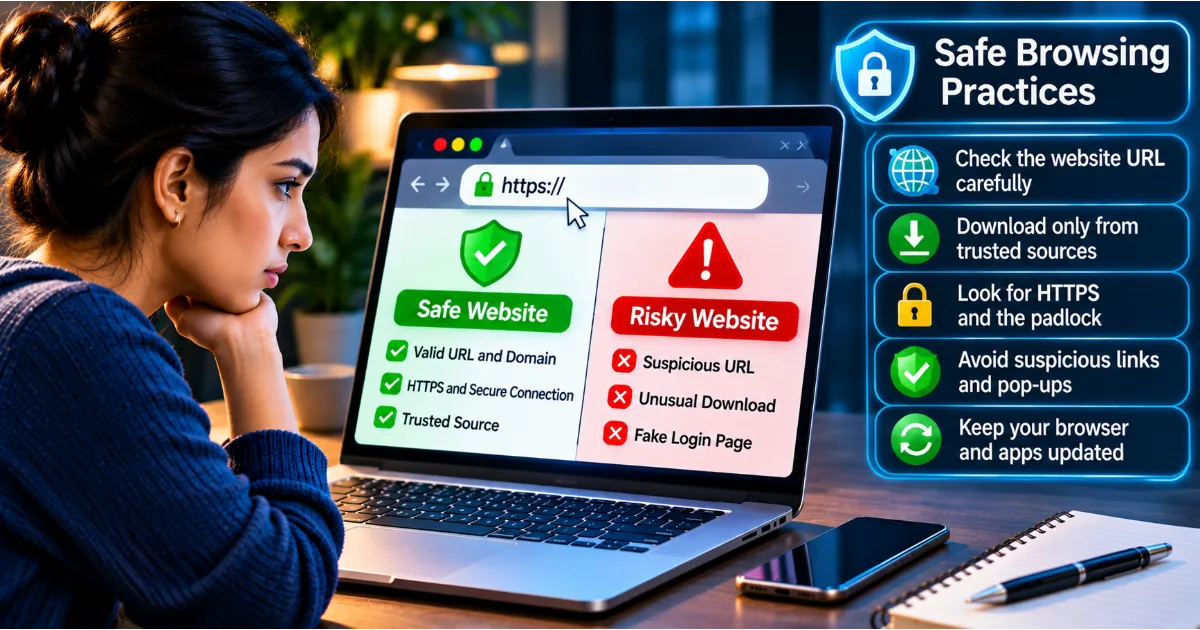
1. Examine the Website Address Carefully
The website address, also known as the URL, is one of the first things to examine before entering information.
Criminals often register domains that resemble legitimate brands. They may replace letters with similar-looking characters, add extra words, or use misleading combinations of names.
For example, a fraudulent address might include a brand name followed by unrelated words or an unfamiliar domain extension. The presence of a familiar company name somewhere in the address does not prove that the website belongs to that company.
Focus on the actual registered domain rather than the complete string of words displayed in the address bar.
When visiting important services, use a saved bookmark created from a verified website or type the known address yourself.
2. Check for HTTPS, but Do Not Depend on It Alone
HTTPS indicates that communication between your browser and the website is encrypted using a secure connection.
This helps protect information while it travels between your device and the website. It can reduce the risk of someone intercepting or modifying data in transit.
However, HTTPS does not prove that a website is legitimate. Fraudulent websites can also obtain valid HTTPS certificates.
A padlock symbol or secure connection indicator should therefore be treated as one technical signal, not a complete trust guarantee.
Always check the domain, the purpose of the website, and the reason it is requesting your information.
3. Look for Unusual Spelling and Grammar
Some fraudulent websites contain spelling mistakes, inconsistent terminology, poorly written descriptions, or unusual formatting.
These problems can be warning signs, particularly when a page claims to represent a major financial institution or government department.
However, professional writing does not prove legitimacy. Criminals can copy genuine content or use advanced writing tools to produce convincing pages.
Use language quality as one clue among several rather than relying on it as the only test.
4. Verify Contact Information
A legitimate business generally provides some way to contact it, although the type and amount of information vary by organisation.
Be cautious when an online store or service provides no meaningful business information, uses unrelated contact details, or offers only an unfamiliar messaging account for customer support.
Verify the organisation independently. Do not assume that a telephone number or email address displayed on a suspicious website is genuine.
5. Watch for Excessive Urgency
Fraudulent websites frequently use pressure tactics. They may claim that an offer expires in seconds, an account will be blocked immediately, or a payment must be completed urgently.
The purpose is to discourage visitors from examining the website carefully.
Legitimate services may also have deadlines, but users should be able to verify important claims through official channels. Do not let urgency prevent you from checking the website's identity.
6. Be Careful With Unexpected Redirects
A redirect occurs when a website sends a visitor to another address. Redirects are sometimes used for legitimate purposes, but unexpected redirects can also indicate advertising abuse, compromised websites, or malicious activity.
If a website suddenly opens several unfamiliar pages, asks you to install software, or displays repeated warnings, close the suspicious pages and avoid following further instructions.
Understanding Browser Security Indicators
Modern browsers include security features designed to help users recognise potentially unsafe websites and downloads.
The Address Bar
The address bar displays the website address and may also show connection and permission information.
Check the domain before entering credentials or payment details. Pay attention to unfamiliar subdomains, unusual spelling, and unexpected domain changes.
A website can use a familiar brand name in its address without being controlled by that brand. Understanding where the actual domain begins and ends is important.
HTTPS and Connection Security
Browsers indicate whether a website connection is encrypted. This is useful when accessing accounts or sending information, but it does not establish the honesty of the website owner.
A fraudulent website can use HTTPS to encrypt communication between the victim and the criminal's server.
Always combine connection checks with domain verification and other trust indicators.
Browser Security Warnings
Browsers may warn users about phishing pages, malware distribution, unsafe downloads, or invalid security certificates.
Do not ignore these warnings simply because a website appears familiar. A warning may indicate that the website has been compromised or is known to distribute harmful content.
If you believe a warning is incorrect, verify the website through an independent source rather than immediately bypassing the protection.
Download Warnings
Browsers may identify files that are uncommon, suspicious, or potentially dangerous.
A download warning does not necessarily mean that every file is malicious, but it should encourage further verification.
Check the source, file type, publisher, and reason for the download. Do not disable security features just to install an unfamiliar application.
Safe Downloading Practices
Downloading files is a routine part of using the internet. People download applications, documents, images, software updates, educational materials, and media files.
However, downloads can also carry malware, spyware, ransomware, and unwanted software. A file that appears useful may contain hidden malicious functionality.
Download Software From Official Sources
Whenever possible, download applications directly from the developer's official website or a recognised application store.
Avoid unofficial download portals that bundle applications with additional software or modify installation packages.
For workplace tools, use the organisation's approved software distribution process. For mobile applications, prefer trusted application stores and verify the developer before installation.
Avoid Pirated Software
Pirated software is a significant security risk. Unofficial installers may contain malicious code, modified components, hidden remote-access tools, or unwanted programs.
Users may also miss important security updates because the software is not connected to the legitimate developer's update process.
Using properly licensed software from trusted sources supports both security and reliability.
Check File Extensions
A file's extension helps indicate its type. Documents, images, compressed archives, scripts, and executable applications have different formats and security implications.
Be cautious when an unexpected attachment has an unusual extension or appears to disguise its true file type.
For example, a document that claims to be an invoice but is actually an executable program should not be opened casually.
Some malicious files use misleading names or multiple extensions to appear harmless. Check the actual file type rather than relying only on its displayed name.
Be Careful With Email Attachments
An unexpected attachment may contain malware or direct users to a malicious download.
Attackers often disguise harmful files as invoices, delivery receipts, job descriptions, payment documents, or account statements.
Verify unexpected attachments with the sender through another trusted communication channel. Do not enable macros or run scripts simply because a document requests it.
Scan Files When Appropriate
Security software can inspect downloads for known malicious content. Keep it updated and allow it to scan files before opening them when appropriate.
However, no security scanner detects every threat. New or modified malware may avoid known detection methods.
The safest approach is to download only from trusted sources and avoid opening files that you did not expect to receive.
Browser Extensions: Convenience and Hidden Risks
Browser extensions add functionality such as password management, translation, accessibility support, productivity tools, and content filtering.
However, extensions may request permissions that allow them to read or modify website content, access browsing information, or interact with pages.
An extension with excessive permissions can create privacy and security risks.
Install extensions only when necessary and obtain them from recognised browser extension stores. Check the developer, reviews, update history, and requested permissions.
Remove extensions that you no longer use. Review installed extensions periodically, especially if you notice unexpected browser behaviour, unfamiliar advertisements, redirects, or changes to your search settings.
Do not assume that an extension remains trustworthy forever. Developers may change ownership, introduce new functionality, or release compromised updates.
How to Protect Your Privacy While Browsing
Safe browsing involves protecting both devices and personal information.
Limit the Information You Share
Websites may request information that is not necessary for their services. Before completing a form, consider why each field is required.
Avoid providing sensitive identification details, financial information, or personal contact information unless the organisation has a legitimate reason to request them.
Do not upload identity documents to unfamiliar websites simply to access a discount, free download, or online reward.
Manage Cookies
Cookies are small pieces of information that websites store in the browser. They can support login sessions, shopping carts, preferences, analytics, and advertising.
Some cookies are necessary for website functionality, while others are used to track browsing activity across websites.
Review cookie preferences when a website provides meaningful controls. Consider limiting unnecessary tracking cookies and clearing stored website data when appropriate.
Understand that deleting cookies may sign you out of websites or remove saved preferences.
Use Private Browsing Carefully
Private or incognito browsing prevents some information, such as local browsing history and session data, from being saved after the private session ends.
However, it does not make a person completely anonymous. Websites, internet service providers, employers managing their networks, and other systems may still be able to observe activity depending on the circumstances.
Private browsing is useful when using shared devices or separating sessions, but it is not a substitute for secure browsing practices.
Review Website Permissions
Browsers allow websites to request access to features such as location, camera, microphone, notifications, and file access.
Do not approve these requests automatically. Consider whether the permission is necessary for the service.
For example, a video-conferencing website may need microphone and camera access, while an ordinary article website generally does not.
Review permissions periodically and revoke access that is no longer required.
Safe Browsing on Public Wi-Fi
Public Wi-Fi is commonly available in airports, hotels, restaurants, libraries, educational institutions, and other shared spaces.
These networks are convenient, but users should verify the network before connecting.
Criminals may create fake hotspots with names similar to legitimate networks. Users who connect to them may be exposed to fraudulent login pages or other attempts to capture information.
Ask the venue for the correct network name instead of guessing. Avoid accessing highly sensitive accounts through networks you cannot trust. Use secure websites and applications, keep device sharing disabled on public networks, and consider a reputable VPN when appropriate.
A VPN can encrypt traffic between your device and the VPN service, but it does not make every website safe. You still need to verify domains, avoid malicious downloads, and protect your credentials.
Recognising Dangerous Pop-Ups and Fake Security Warnings
Pop-up messages can appear while browsing, but some are designed to manipulate users into installing software or contacting fraudulent support services.
A fake warning may claim that your computer has been infected with multiple viruses. It may display a telephone number and instruct you to call immediately.
Another type may claim that you have won a prize and must enter personal information to receive it.
Some deceptive pop-ups imitate browser notifications, operating system alerts, or security software messages. They may encourage users to download a fake cleaner or grant remote access to a stranger.
Do not call numbers displayed in unexpected security warnings. Do not install software because a website claims your device is infected. Close the suspicious tab or browser window, and use your trusted security application to investigate if necessary.
If a pop-up prevents normal browsing, use the browser's standard controls to close the tab or application. Avoid following instructions displayed by the suspicious page.
Safe Browsing for Online Shopping
Online shopping creates opportunities for fraud because customers regularly provide payment and personal information.
Before making a purchase from an unfamiliar store, investigate the business and check whether it has a genuine presence.
Examine the domain carefully. Search for independent customer experiences, review the return and refund policy, and check whether contact information is consistent.
Be cautious when prices are dramatically lower than those offered by established retailers. Criminals frequently use unrealistic discounts to create urgency.
Use payment methods that provide appropriate transaction protection. Avoid sending money through unusual channels requested by an unknown seller.
After completing a purchase, save the order confirmation and monitor your financial account for unfamiliar transactions.
Safe Browsing for Online Banking and Digital Payments
Financial websites and payment applications require particular care because they provide access to money and sensitive information.
Access banking services through official applications or verified website addresses. Avoid signing in through links received in unexpected messages.
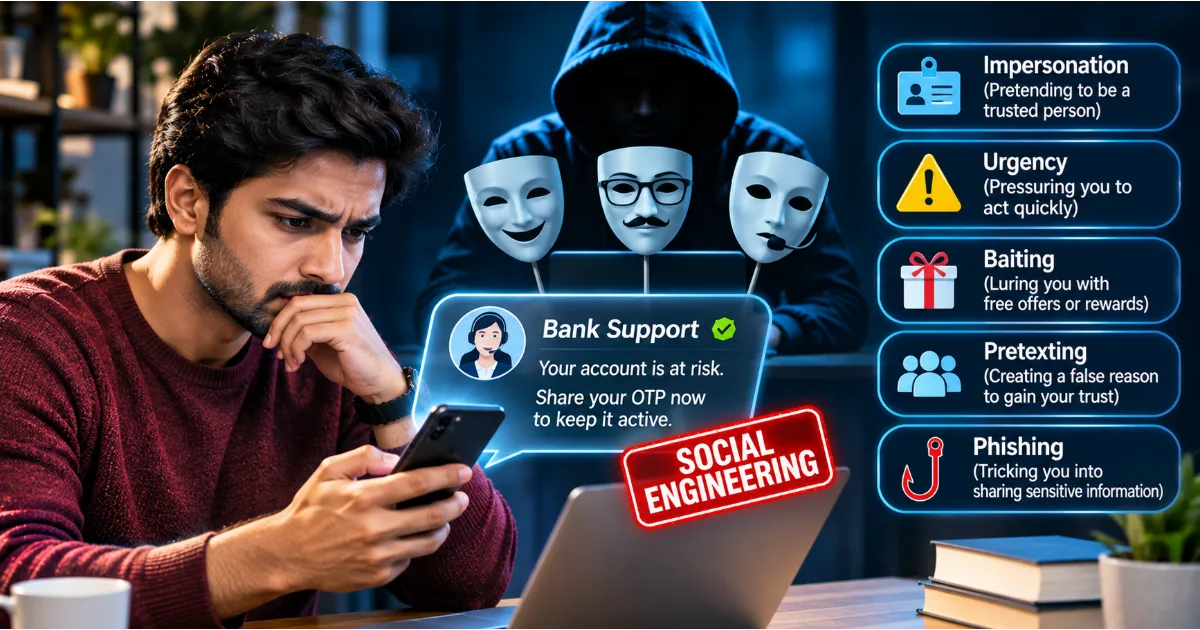
Never share your PIN, password, or one-time verification code with someone who contacts you unexpectedly. Banks and payment providers should not ask you to disclose confidential authentication credentials over an unsolicited call.
Check account notifications and transaction records regularly. If a website or application behaves unexpectedly, stop the transaction and contact the financial institution through an independently verified channel.
For additional protection, enable supported authentication features and transaction alerts. Keep your mobile device updated and protect it with a strong screen lock.
Safe Browsing for Children and Students
Children and students may use the internet for research, online classes, gaming, social networking, and entertainment. They may also encounter misleading advertisements, fake downloads, inappropriate websites, and online scams.
Parents and educators should explain that not every website or message is trustworthy. Children should be encouraged to ask for help before downloading unfamiliar software or sharing personal information.
Use age-appropriate content controls and privacy settings. Review application permissions and discuss the risks of sharing photographs, school details, addresses, and location information publicly.
Students should also learn to distinguish genuine educational resources from websites that copy content, distribute unsafe downloads, or request unnecessary personal details.
The goal should be to develop independent digital judgement rather than simply restrict internet access. Children who understand online risks are better prepared to make safe decisions as they become more independent users.
Safe Browsing Practices for Businesses
Businesses rely on browsers for email, customer management, financial services, cloud platforms, communication, and internal applications. A compromised browser session can expose sensitive information or provide access to business systems.
Organisations should establish clear browsing and software installation policies. Employees should use approved browsers, keep them updated, and install only authorised extensions.
Sensitive business accounts should be protected with unique passwords and multi-factor authentication. Access to confidential systems should be restricted according to job responsibilities.
Employees should receive training on phishing links, fraudulent websites, unsafe attachments, and fake technical support warnings.
Businesses should also use appropriate endpoint protection, web filtering, network security controls, and monitoring. These technologies can reduce exposure to known threats, although they cannot replace employee awareness.
When suspicious browsing activity occurs, employees should know how to report it. The organisation should have procedures for isolating affected devices, resetting compromised credentials, investigating incidents, and communicating with relevant stakeholders.
What to Do If You Visit a Malicious Website
Accidentally opening a suspicious website does not always mean that your device has been compromised. The risk depends on what happened during the visit, the website's behaviour, the device's security, and whether you downloaded or entered anything.
If you simply opened a suspicious page, close it and avoid interacting with its content. Do not approve notifications, download files, enter credentials, or follow instructions.
If you entered a password, change it immediately from a trusted device. If the password was reused, update it on other services as well. Review active sessions and enable stronger authentication.
If you entered financial information, contact your bank or payment provider through an official channel and explain what happened.
If you downloaded or opened a suspicious file, disconnect the affected device from networks if you suspect active compromise, avoid entering further credentials on it, and use trusted security software or professional assistance to investigate.
If you installed an unfamiliar application or browser extension, remove it where safe to do so and review the device for additional suspicious activity.
Preserve relevant evidence, including the website address, messages, downloaded file names, and security alerts. If personal or financial information has been misused, report the incident through the appropriate official channels.
Building a Daily Safe Browsing Routine
Safe browsing becomes more effective when it is part of a consistent routine.
Before opening a link, consider whether you expected the message and whether the sender is genuine. Before entering credentials, check the website address. Before downloading a file, verify its source and purpose.
Keep your browser, operating system, and applications updated. Remove unnecessary extensions and review website permissions. Avoid installing software from unfamiliar sources.
Use unique passwords and strong authentication methods for important accounts. Keep security software active and review financial and account notifications regularly.
When something appears unusual, stop and verify it rather than responding immediately. A few seconds spent checking a website can prevent a much larger problem later.
Conclusion
Safe browsing is an essential part of modern cybersecurity. Every day, internet users encounter websites, links, advertisements, downloads, and online services that may expose them to phishing, malware, identity theft, and financial fraud.
The most effective protection begins with awareness. Check website addresses carefully, understand the limitations of HTTPS, download software only from trusted sources, manage browser extensions and permissions, and avoid unexpected security warnings or urgent requests.
Protect your personal information by sharing only what is necessary. Use strong passwords, enable multi-factor authentication, keep devices updated, and monitor important accounts for unusual activity.
Businesses should support safe browsing through employee education, approved software policies, secure authentication, and appropriate technical controls. Families and schools should help younger users develop responsible online habits.
The internet offers enormous opportunities for learning, communication, work, and growth. Safe browsing does not mean avoiding these opportunities. It means accessing them with awareness and making careful decisions about the websites and services we trust.
A secure digital experience begins with small habits repeated every day. Verify before you click, think before you download, and protect your information before you share it.
#SafeBrowsing #CybersecurityAwareness #OnlineSafety #MalwarePrevention #DigitalSecurity